
This post has been republished via RSS; it originally appeared at: New blog articles in Microsoft Tech Community.
Users sometimes may fail to update the cloud service (classic) or the cloud service (extended support) due to the cloud service being under the migration process. Both the cloud service (classic) and the automatically created cloud service (extended support) will be locked when there is an ongoing migration process. This blog will introduce this issue from the following two sides:
- How this issue came out
- How to resolve this issue and update the cloud services
How this issue came out
When users try to migrate the cloud service(classic) to the cloud service (extended support), after the preparation stage, there will be a new cloud service (extended support) created automatically.

After the preparation step, there will be a newly created cloud service (extended support)

Newly created cloud service (extended support)
After the preparation step, if users do not choose either “abort” or “commit” for the migration, both the cloud service (classic) and the newly created cloud service (extended support) will be locked at this stage.
In this stage, if users try to update the classic cloud service or the newly created cloud service (extended support), the error notification will be prompted out and indicate users cannot update the cloud service. Users can check the detailed error message from the Activity Log.
- Failed to update the cloud service (classic)
The following example shows the scenario when I failed to update the cloud service (classic) due to the ongoing migration process.

Prompted error message when I update the configuration
The detailed explanation can be found in the Activity log.

Error message from the Activity Log
Detailed error message:
"statusMessage": "{\"error\":{\"code\":\"ChangeDeploymentConfigurationOperationFailed\",\"message\":\"The Change Deployment Configuration operation failed for the domain 'classiceastus' in the deployment slot 'production' with the name 'classicCSeastUS - 1/20/2022 6:08:58 PM': 'Deployment e61b35a882c54ec5aed1eea290f6d3bd in HostedService classiceastus is in the process of being migrated and hence cannot be changed.'.\"}}",
- For the cloud service (extended support),
The following example shows the scenario when I failed to update the cloud service (extended support) due to the ongoing migration process.

Prompted error when I scaled out the cloud service (extended support)

Error message from the Activity Log
Detailed error message
"statusMessage": "{\"error\":{\"code\":\"OperationNotAllowed\",\"message\":\"The operation cannot be performed on cloud service 'classiceastus' because a migration is in progress. Commit the migration to start managing the cloud service.\"}}"
How to resolve this issue
Before updating the cloud services, users need to commit or abort the ongoing cloud service (classic) migration.
- Abort the migration
- Using the Azure PowerShell commands
Users can use the following command to abort the ongoing migration process.
Move-AzureService -Abort -ServiceName $serviceName -DeploymentName $deploymentName
Reference Doc: Migrate to Azure Cloud Services (extended support) using PowerShell | Microsoft Docs - From the Azure Portal
Users need to go through the validation and preparation steps again and click the “Abort” to cancel the migration.
- Using the Azure PowerShell commands
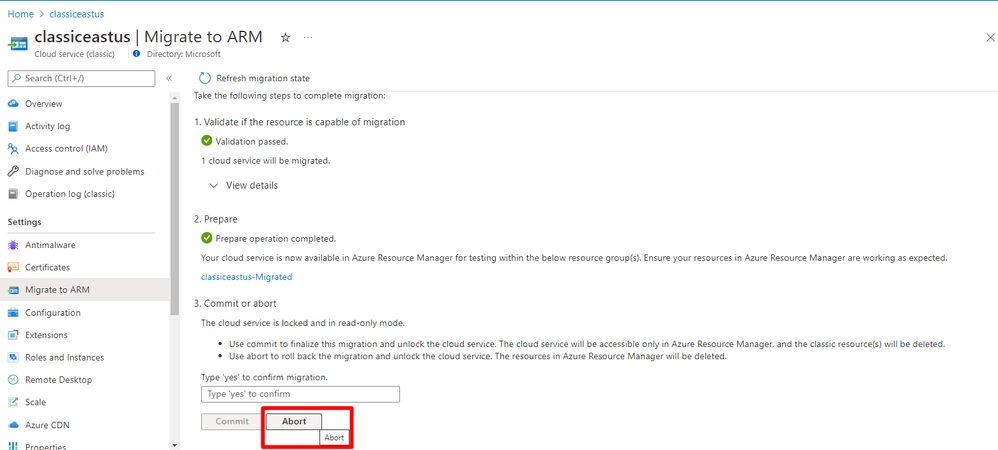
Click “abort” to cancel the migration process
After aborting the migration, the created cloud service (extended support) will be deleted automatically. And then users can successfully update the cloud service (classic).

The newly created cloud service (extended support) is not available

Succeed in updating the cloud service (classic)
- Commit the migration
Instead of aborting the migration, users also can commit the migration. Similar to the above steps, users can commit the migration from the Azure Portal or the Azure PowerShell.- From the Azure Portal
Click “commit” to submit the migration process
- Using Azure PowerShell command
Move-AzureService -Commit -ServiceName $serviceName -DeploymentName $deploymentName
Reference Doc: Migrate to Azure Cloud Services (extended support) using PowerShell | Microsoft Docs
- From the Azure Portal

After committing the migration, the classic cloud service will be migrated to the corresponding cloud service (extended support). The cloud service (classic) will not be available and users can successfully update the migrated cloud service (extended support).