
This post has been republished via RSS; it originally appeared at: New blog articles in Microsoft Tech Community.
Step C: Creating Measures to change UI behaviour
In the Power Query screen
- Create a new table called, “_GUI Measures” with a Blank Query. This will be a dummy table, so that we can group our measures in one place.
- Click Close and Apply to close the Power Query window.
In the Power BI Desktop screen
- Change the data classification of the ImageURL column to Image URL
- Change the data classification of the WebURL column to Web URL
- Set default summarization of Images.ImageId to Maximize.
- Ensure there is a bi-directional relationship between the two tables on ImageId.

7. Create a new Measure called Tag Measure under “_GUI_Measures”
Formula Explanation: The ISFILTERED function is used to determine if the Tag column is being filtered directly.
When the matrix visual is expanded state then the Tag column has values and has a filter context so the function will return TRUE, but when the matrix visual is in collapsed state there is no filter context being applied on the Tag column so the function will return FALSE.
When the matrix visual is in expanded state then we want to display the Tag value, since this is a measure will use the MAX() aggregate. This will basically do a MAX of a single row, which is return the same value as the column value.
When the row in the matrix visual is in collapsed state then we have two options of how we want to display the value:
- Display all tag values comma-separated. Which means, it makes more sense to not display value in the confidence cell.
//MAX(ImageTags_VisionInsight[Tags])
Since this is a measure, we are using MAX. If you want this behaviour, then uncomment this line and then comment out the CALCULATE line.
OR
b. Display the maximum confidence, and then display the Tag corresponding to the maximum confidence.
There is a relationship between the Images table and the ImageTags_VisionInsight table on the ImageId column. Using the CALCULATE function we can retrieve the Tag value by filtering confidence value to match the MAX confidence value for that ImageId.
8. Create a new Measure called Confidence Measure under “_GUI_Measures”.
9. Set the Folder location and Percentage format for the Confidence Measure.
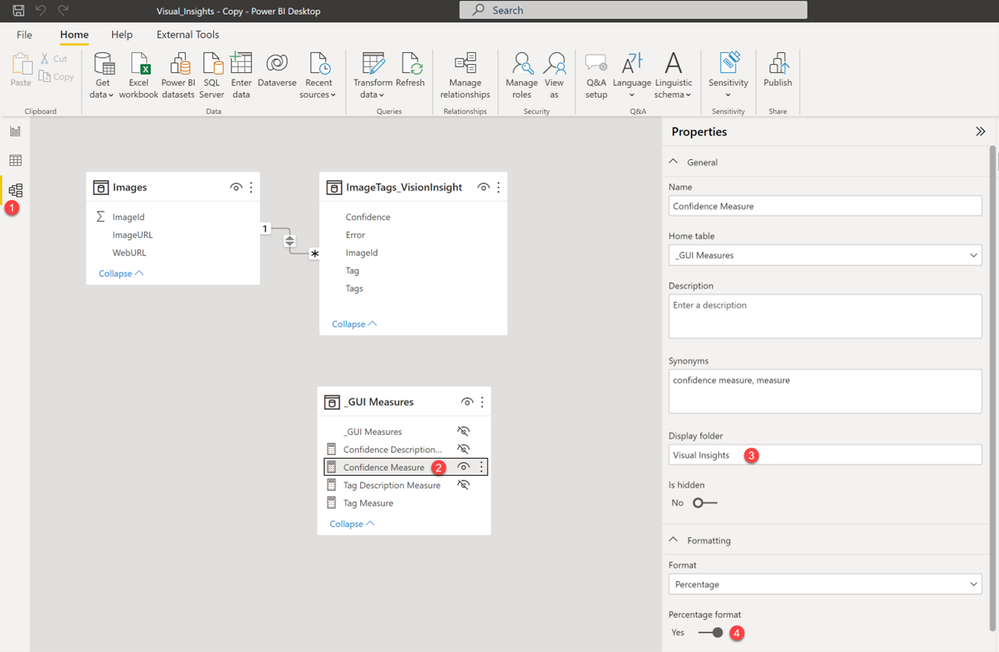
10. Similarly set the folder for the Tag Measure to Visual Insights.
Summary
We created DAX measures to control what is displayed as the Tag and the Confidence Value when a row is in collapsed (summarized) mode in a Matrix Visual. In the next post we will use these measures in the Matrix Visual.