This post has been republished via RSS; it originally appeared at: Microsoft Developer Blogs.
The explosion of devices in the IoT space is more than a little overwhelming. Where do you start? Why choose hardware when you can experiment entirely in software? That’s the power of the Device Simulator Express (DSE). The DSE comes out of the Microsoft Garage internship program – two separate teams worked on the simulator over the past year. The development was done on GitHub and is open to contributors. You can start experimenting with programming Python on IoT devices without buying anything – in fact, there’s nothing to buy at all. Everything you need is open-source and free. Just download:- Visual Studio Code (https://code.visualstudio.com/)
- Python 3.7+ (https://www.python.org/downloads/)
- Device Simulator Express (https://marketplace.visualstudio.com/items?itemName=ms-python.devicesimulatorexpress)
Simulating devices in Visual Studio Code
There are three different simulators in the Device Simulator Express as of writing. The first is the Adafruit Circuit Playground Express, a circular device with two buttons, ten RGB NeoPixel LED lights, and a host of other sensors. [caption id="attachment_7974" align="aligncenter" width="233"] The Adafruit Circuit Playground Express.[/caption]
In the DSE, you see a graphical representation of the device, and all of the buttons and touchpads work with mouse clicks. You write code in Python to control the Circuit Playground Express and then experiment with the simulation. In Visual Studio Code, you’ll see your code in one pane alongside the graphical device, so you experience the rapid-fire “write a line of code, run it, make changes” cycle that makes programming fun and easy to understand.
And when you’re ready to experiment on hardware, the Device Simulator Express extension makes it easy to push your code via USB into the IoT hardware.
And the Circuit Playground Express is not the only device in the simulator!
The BBC micro:bit is a small rectangular device with a five-by-five grid of LEDs, two buttons, and several other sensors.
[caption id="attachment_7975" align="aligncenter" width="250"]
The Adafruit Circuit Playground Express.[/caption]
In the DSE, you see a graphical representation of the device, and all of the buttons and touchpads work with mouse clicks. You write code in Python to control the Circuit Playground Express and then experiment with the simulation. In Visual Studio Code, you’ll see your code in one pane alongside the graphical device, so you experience the rapid-fire “write a line of code, run it, make changes” cycle that makes programming fun and easy to understand.
And when you’re ready to experiment on hardware, the Device Simulator Express extension makes it easy to push your code via USB into the IoT hardware.
And the Circuit Playground Express is not the only device in the simulator!
The BBC micro:bit is a small rectangular device with a five-by-five grid of LEDs, two buttons, and several other sensors.
[caption id="attachment_7975" align="aligncenter" width="250"] The BBC micro:bit[/caption]
The matrix of LEDs makes it easy to create simple graphical images, characters, and even animations. One of the more popular demo apps for the micro:bit is a dice simulation – you shake the device triggering the accelerometer (which you can do with your mouse in the DSE) and the micro:bit LEDs blink until they stop on a one-to-six die pattern.
Next up is the Adafruit CLUE, which is much like the micro:bit, but adds an LCD display instead of the matrix of LEDs.
[caption id="attachment_7976" align="aligncenter" width="245"]
The BBC micro:bit[/caption]
The matrix of LEDs makes it easy to create simple graphical images, characters, and even animations. One of the more popular demo apps for the micro:bit is a dice simulation – you shake the device triggering the accelerometer (which you can do with your mouse in the DSE) and the micro:bit LEDs blink until they stop on a one-to-six die pattern.
Next up is the Adafruit CLUE, which is much like the micro:bit, but adds an LCD display instead of the matrix of LEDs.
[caption id="attachment_7976" align="aligncenter" width="245"]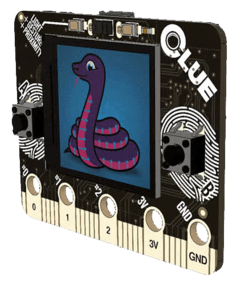 The Adafruit CLUE[/caption]
Now you’ve got some serious graphical power available with the 1.3 inch IPS LCD color display – the canonical example project on the CLUE is the game Snake. You can make compact, old-school, 8-bit style video games on the Adafruit CLUE.
With all the programming done in Python inside Visual Studio Code, you can experiment with moving your applications between the various hardware simulations and see how each device functions a bit differently, with different API calls needed.
The power of being able to experiment without buying hardware first provides a chance to explore what device is best for your particular application. More simulations added to the Device Simulator Express project will expand the number of choices for experimentation.
The Adafruit CLUE[/caption]
Now you’ve got some serious graphical power available with the 1.3 inch IPS LCD color display – the canonical example project on the CLUE is the game Snake. You can make compact, old-school, 8-bit style video games on the Adafruit CLUE.
With all the programming done in Python inside Visual Studio Code, you can experiment with moving your applications between the various hardware simulations and see how each device functions a bit differently, with different API calls needed.
The power of being able to experiment without buying hardware first provides a chance to explore what device is best for your particular application. More simulations added to the Device Simulator Express project will expand the number of choices for experimentation.