
This post has been republished via RSS; it originally appeared at: Microsoft Tech Community - Latest Blogs - .
This post is a part of series for Leverage collaboration between PowerApps and Azure API Management. In previous post, we have enabled our PowerApps to access your Web APIs via API Management. We should enable Developer Portal on Azure API Management to publish your Web API for "citizen developers" widely as next step.
- No.1: Setup Power Apps "custom connectors" to simply call your Web APIs via API Management
- No.2: Enable Developer portal for API Management to expose your Web APIs as ecosystem - this post!
- No.3: Authentication and authorization with Azure AD
- No.4: Enterprise network usage
IT departments can establish ecosystem with your Web APIs and API Management. It requires to enable citizen developers to confirm API specs, publish keys, test or run Web APIs anytime. By publishing your Web APIs on Developer Portal, citizen developers can retrieve your Web API with various applications or flows not only Power Platform. API Management Developer Portal isn't enabled initially, so we will enable it and publish Web APIs widely.
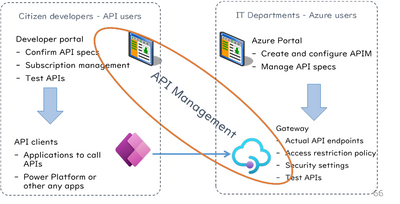
Enable Developer Portal on API Management
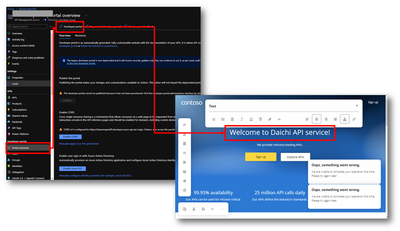
Open "Portal overview" menu on your API Management and Click "Developer portal" first, because you haven't setup any contents on your developer portal. You can find a simple page just after opening your developer portal. In this example, I have just updated top page text as containing my name like below.
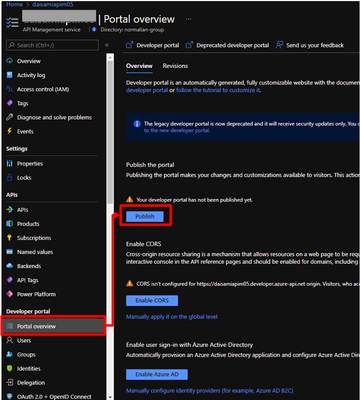
You're ready to publish your developer portal now, so go back to "Portal overview" menu on your API Management. You can find enabled "Publish" button for developer portal, so click "Publish" button.
You should enable Azure AD authentication in addition to publish developer portal. Citizen developers are authenticated with their Azure AD tenants in most cases, so it should be more useful to establish Single Sign-On(SSO).
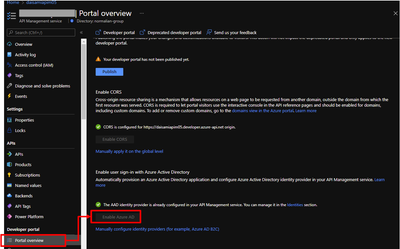
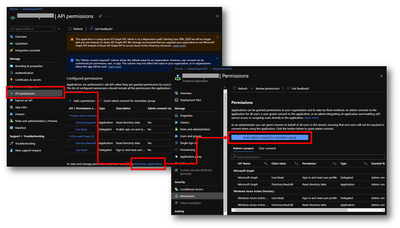
Service Principal for API Management will be automatically generated on your Azure AD tenant. Users for your Web APIs will be required consent for your Azure AD administrator. Open your service principal on your Azure AD tenant and grant admin consent for a service principal on your Azure AD tenant.
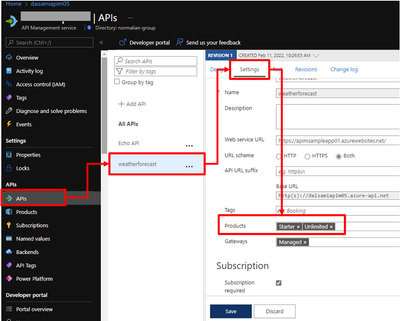
You need to create and publish as a product with your Web API. Open your Web API setting page and choose products which you want to include your Web APIs as packages to publish for citizen developers.
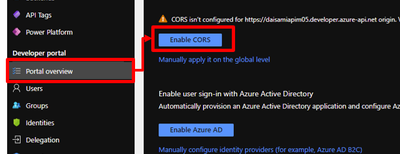
Enable Cross-Origin Resource Sharing(CORS) to allow your WEB API users to access on developer portal. Note that your Power Apps can't access your Web APIs right after enabling this setting - how to fix this issue has been described bottom on this article.
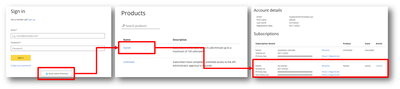
Access developer portal as a citizen developer
Open your developer portal and you will be required to sign-in. Login your citizen developer credential with Azure AD. Subscribe a product on developer portal, so you can pick up keys to access your Web APIs as a citizen developer.
Fix CORS issue to call your Web API from Power Apps
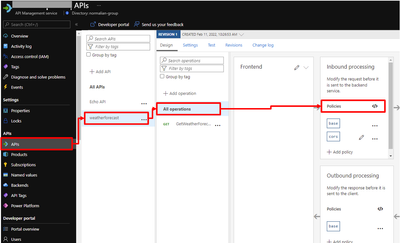
It's required to allow preflight requests from Power Apps to your API Management. You have already enabled CORS but API Management hasn't allowed preflight requests except for your developer portal, so you need additional setting. Open your Web API setting and put information.
<policies>
    <inbound>
        <base />
        <cors allow-credentials="true">
            <allowed-origins>
                <origin>https://your-apim-name.developer.azure-api.net</origin>
                <origin>https://flow.microsoft.com</origin>
                <origin>https://your-powerapps-region.create.powerapps.com</origin>
                <origin>https://apps.powerapps.com</origin>
                <origin>https://make.powerapps.com</origin>
            </allowed-origins>
            <allowed-methods preflight-result-max-age="300">
                <method>*</method>
            </allowed-methods>
            <allowed-headers>
                <header>*</header>
            </allowed-headers>
            <expose-headers>
                <header>*</header>
            </expose-headers>
        </cors>
    </inbound>
    <backend>
        <base />
    </backend>
    <outbound>
        <base />
    </outbound>
    <on-error>
        <base />
    </on-error>
</policies>
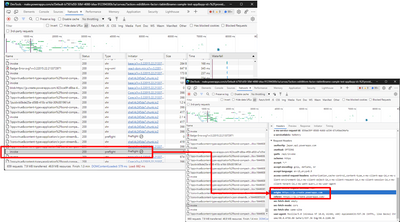
You can confirm your regional id on preflight requests by using browser developer tools like here - you can use jp if your environment is Japan.
Now, your Power Apps can access your Web APIs via API Management again! As next step, you can configure additional settings on API Management. API Management offers "advanced request throttling" to avoid unexpected error caused by massive request to backend systems. Setup quota or rate-limit policy for your backend Web APIs.
https://docs.microsoft.com/azure/api-management/api-management-sample-flexible-throttling
https://docs.microsoft.com/azure/api-management/api-management-access-restriction-policies