
This post has been republished via RSS; it originally appeared at: Azure Data Explorer Blog articles.
Power BI Slicers and Filters on Kusto DateTime columns
This is a multi-part blog post about using DateTime columns in PBI.
It is an area that was traditionally not a focus in PBI.
Classic BI is more interested in daily, monthly, quarterly, and yearly summaries and less in Hours, Minutes, and seconds.
Users of Kusto are many times interested in activities over a very short period of time and in high time accuracy.
Relative time slicer
If you want to investigate a time period that is relative to the current time, you can use the relative time type of slicer on a DateTime column. Note that the option for relative time is offered also for date columns but it will not work.
The selection can be in the last N hours or last N minutes.

Using the table TransformedSysLogs in the help clus
With .show queries in the help database you can see a query like:
["TransformedSysLogs"]
| where ((["SysLogTimestamp"]) <= ((datetime(2022-02-13 12:58:16.0000000)))) and (((["SysLogTimestamp"]) >= ((datetime(2022-02-13 11:58:16.0000000)))))
| summarize ["a0"]=count() by ["name"], ["facility"], ["host"], ["hostname"]
| limit 1000001
This query is extracting exactly the rows that you want in the most efficient way.
Datetime filters
What if the time period you want to investigate is not in the last hours or minutes but is a specific time period like Yesterday between 14:45 and 15:00.
No standard slicer in PBI are able to extract this specific period.
Your only option is to use filters which will appear in the filter pane and not on the page itself.
You first drag the DateTime column to the relevant filter location - Visual, this page or all pages.
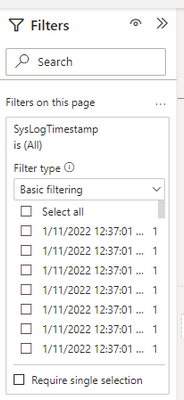
Basic filtering is the default but it is not usable and also can be very expensive to setup, as it tries to retrieve all values for the DateTime column. This may fail on a large table
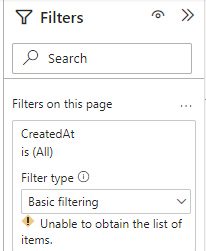
Immediately after you drag the column to the filter pane (Don’t wait for the operation to complete), change the type of filter from basic to advanced and enter the starting time and end time
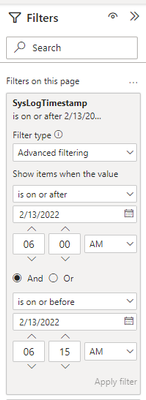
The user of the report can select any time period using this filter.

You can be as accurate as a single minute.
The query to obtain all the values will still run the first time and can consume huge resources.
If you want to avoid wasting resources, you can insert a step in the query that will keep the top 100 rows, apply the filter in advanced mode and then go back to the query and remove the keep top rows step.