This post has been republished via RSS; it originally appeared at: Microsoft Mobile Engineering - Medium.
Microsoft Teams — Designing for Emerging Markets — Part 1 (Network Profile)

This is a two-part series of articles that discusses the strategies adopted by Microsoft Teams engineers to improve Android User Experience in Low-Bandwidth Network conditions.
A collaborative workspace has become a desideratum for building things together in the wake of the pandemic. Microsoft Teams is a platform designed for seamless collaboration among users across the world. In recent years, the Microsoft Teams Android app has been provisioning various features — Search, Message Actions, Notifications, and other features with numerous enhancements. On the other hand, we’ve also received user complaints about the downside — the app claims to have no internet connection, the user can’t send a message, the app is inoperable on cellular networks. As a result, we needed to address these issues since they were hampering app performance.
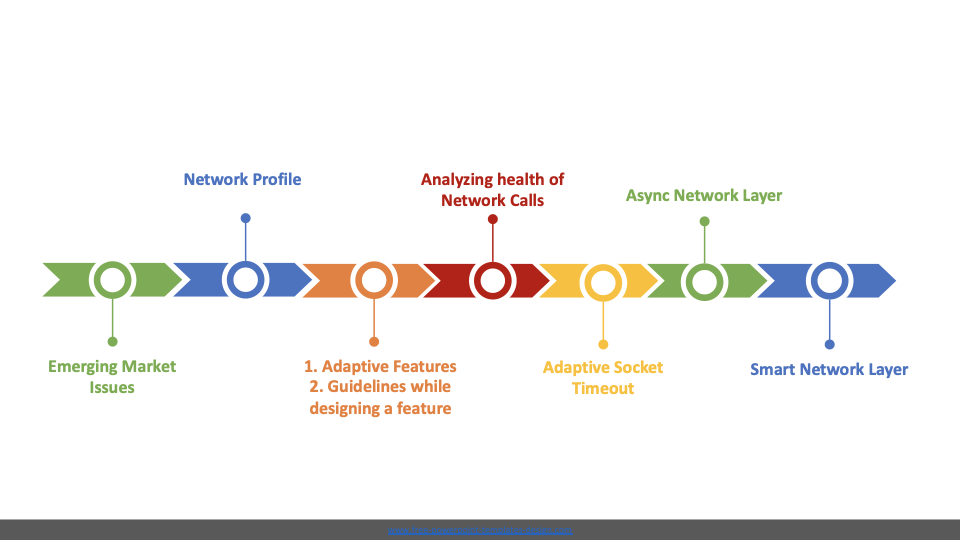
We adopted a strategy to analyze the causes of low app performance in Emerging Markets and invested incrementally.
Our primary goals are :
- To correctly detect network availability.
- To dynamically measure network speed.
- To adapt app features based on the detected network quality.
- To reduce network exceptions.
- To curate a more intelligent and resilient network layer.
- Finally, to prevent the impact of network tasks on non-network tasks.
Let us discuss each section in detail, emphasizing the takeaways.
Emerging Market Issues
Emerging markets are high-growth regions where android devices are available with numerous specifications, and where users operate on cellular networks but often switch between types of connections. This environment constitutes performance challenges and demands architectural changes for seamless usage of the app. While using Teams Android in emerging markets, users encountered the following network stack issues:
- False negatives of the offline network state.
- Undelivered content and delay in the refresh.
- Slowness in UI.
- Features cannot be used seamlessly in 2G/3G/LTE connections.
We were able to improve each of these issues by enhancing the network stack in Teams.
Network Profile of the User
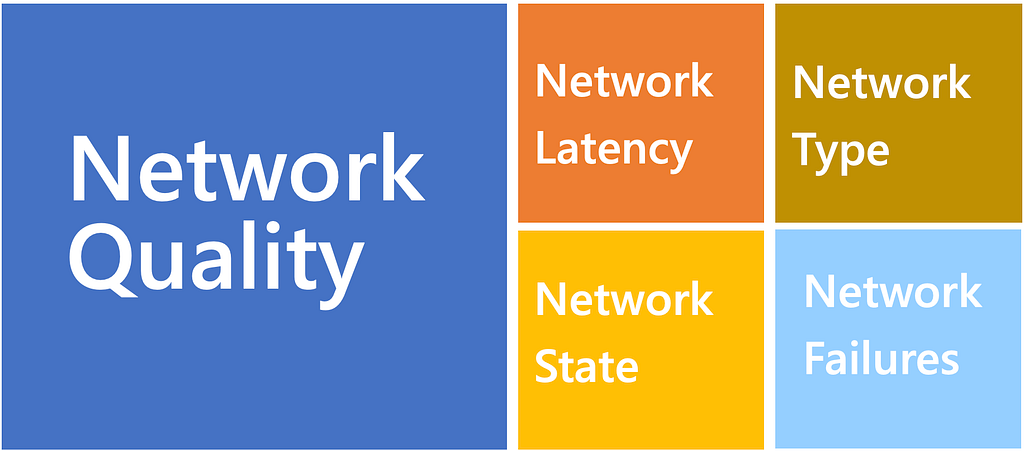
We characterize the user's network profile by defining the network state, network call latency, network type, network quality, and network call failures. These values are logged and are available to us as telemetry information.
Network state
Android documentation recommends including a network check before a network call, as it can impact the battery. Hence at the client, we used to check if the user is either CONNECTED or DISCONNECTED to the network; there was no fuzzy intermediate. This state was determined by using the NetworkCallback class of ConnectivityManager.
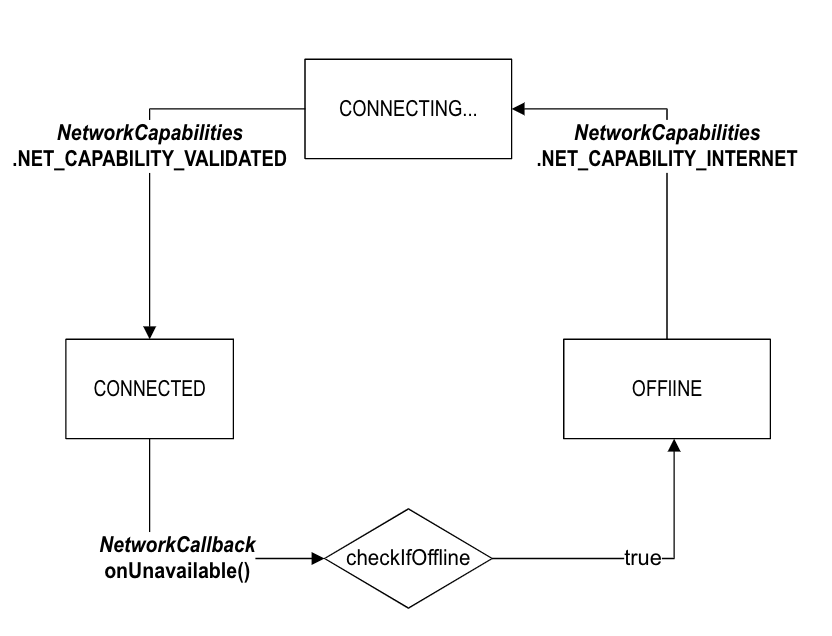
- In the initial version of the network state, we claimed that the network is available when the NET_CAPABILITY_INTERNET and NET_CAPABILITY_VALIDATED network capabilities are part of the network capabilities.
- However, this decision had a problem since there used to be considerable delay in obtaining the NET_CAPABILITY_VALIDATED callback by the ConnectivityMonitor(part of the Android internal library). We observed that this caused false negatives of the network state, i.e., our app used to detect the DISCONNECTED network state when the device had internet.
- Hence we included another condition known as the VALIDATION state. Till the time we obtained NET_CAPABILITY_VALIDATED callback, we showed CONNECTING… and allowed the network call to happen.
- Locally and in production, this fixed a significant number of user complaints.
Network Quality
It is generally assumed that the users on WIFI connection are considered to have excellent network speed. However, this might not always be true.
Below is the bar chart showing the distribution of Wifi Users in different network quality. We can observe that there are significant users under GOOD and below.
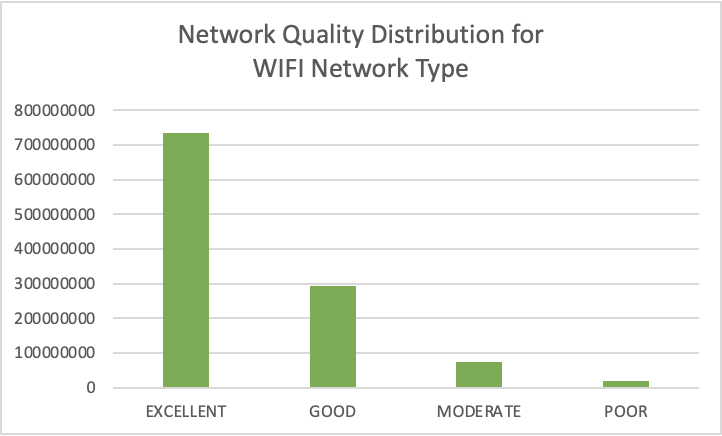
Does Android provide APIs to determine the network bandwidth? What are the alternatives? Is there any existing library?
Yes, and no. The Android APIs do not provide accurate ways to determine the network bandwidth/speed.
Facebook open source has a Network Connection class library that is currently archived and is incompatible with the recent Android versions. But we could fork it and tweak it based on our app's requirement. This library is designed to listen to the current network traffic and classify if the network connection is good or bad.
Case Study: Understanding Network Connection Class Library — Facebook Open Source
The issue with the current ConnectionClass library
- Internally, the library uses the /proc/net/xt_qtaguid/stats file to read the total number of bytes downloaded, which is phased out in Android 9 and above. So we will get UNKNOWN as network quality type for Android 9 and above phones.
- We can fork the Android 9 and above library and use TrafficStats class, which provides network traffic statistics.
- Thresholds defined in the original library were highly unrealistic. Therefore, we should experiment to determine our thresholds.
How does the open-source ConnectionClass Library work?
Github repo and the Engineering blog have an overview of the library. Some of the crucial aspects of the algorithm are :
1. Every second, a monitor samples the bytes transferred and calculates a proxy value of the network bandwidth.
2. The algorithm adopts an exponential moving average to filter out the outliers and the noises in the network stream.
3. Exponential Moving Average gives more weightage to the current values of sampling than the ones before. This is because they pick up short-term volatility in data trends and move quickly with change.
4. To provide reliable network quality values, the algorithm encompasses the logic of considering a minimum number of samples and the amount the average has to cross a boundary before triggering a bucket change.
The modified library was locally experimented with changing network scenarios and different network types to validate its results.
We experimented with two strategies — The Continuous Sampling approach and the Triggered Sampling approach.
In the continuous sampling approach, we sampled every 1 second, irrespective of the network activity by the app. Unfortunately, this yielded many inaccurate values.
In the triggered sampling approach, we sampled only when network calls were happening and when the app was in the foreground. In this type, the start sampling gets triggered only when network calls are happening. Also, the sampling is designed to stop when all the network calls are completed.
- For a good speed connection like 4G and Wifi, the network calls happen fast and return within a second. Hence the sampling value is high and remains high, indicating a good network.
- For a slower connection, say with SocketTimeoutException, the sampling happens for a longer time generating low bandwidth values and indicating a poor-quality network.
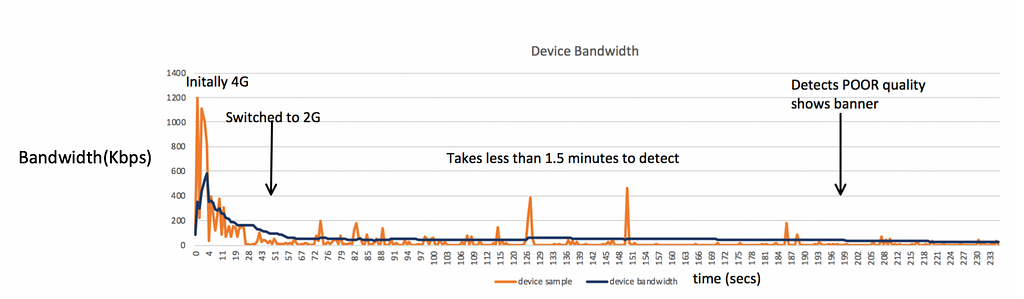
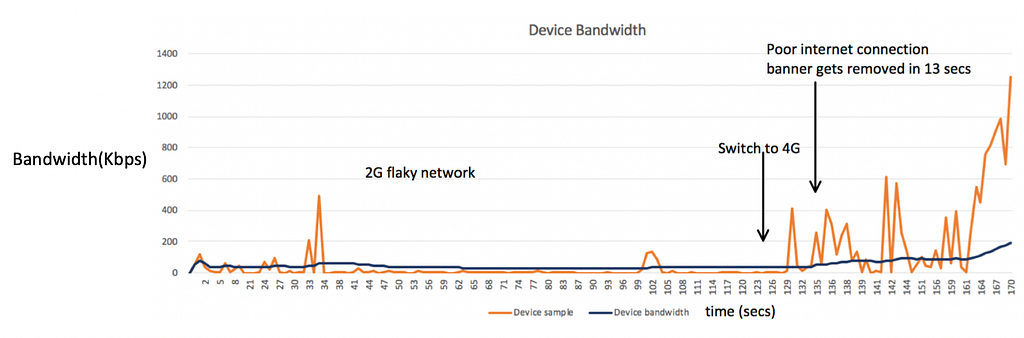
After testing in different network conditions and simulating poor bandwidth, we concluded the below thresholds for the algorithm. We also kept a factor mBandwidthThresholdFactor in tweaking it for experimentation.
private static final int DEFAULT_POOR_BANDWIDTH = 40 mBandwidthThresholdFactor;
private static final int DEFAULT_MODERATE_BANDWIDTH = 80 * mBandwidthThresholdFactor;
private static final int DEFAULT_GOOD_BANDWIDTH = 240 * mBandwidthThresholdFactor;
// above 240 => EXCELLENT
Validation in production data
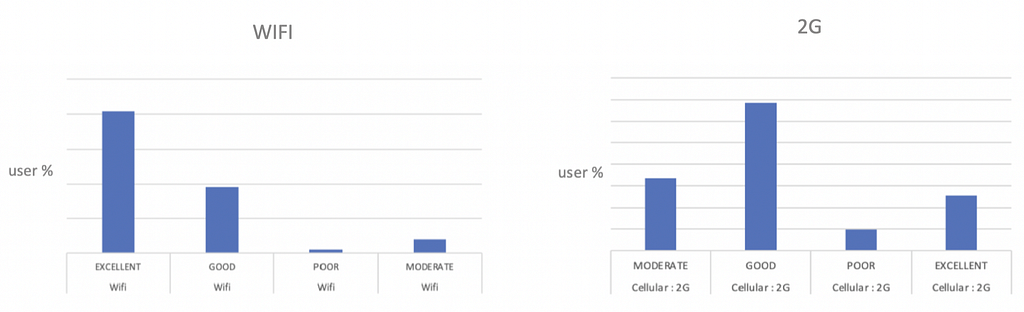
The below graph shows the user distribution in different network types and network quality. For example, users on Wifi could be seen on the higher end of the network quality while the users on 2G had a higher percentage of users on POOR, MODERATE, and GOOD network quality.
Demo of Dynamic Video Upload in Microsoft Teams
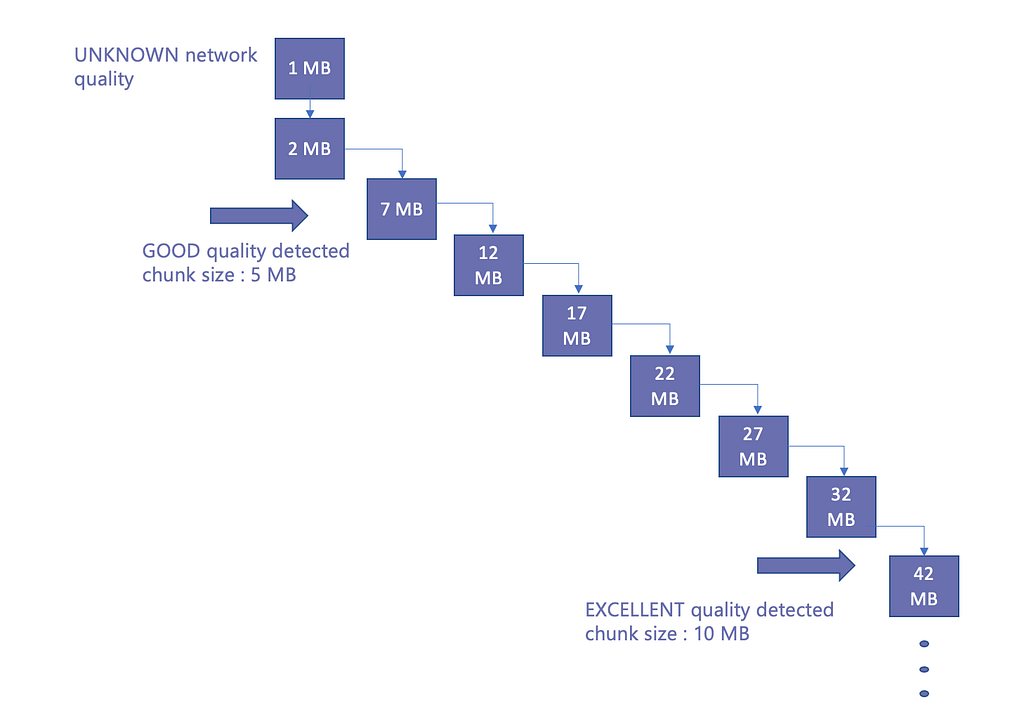
Chunk update happens in run-time while uploading files. Initially, the file is uploaded in chunks of 1 MB. Then gradually, the chunk size increases to 10 MB. This adaptation improved the file upload speed in Android.
Adaptive features — How is Network Quality used in Microsoft Teams?
- We analyze user scenarios based on Network Quality.
- We analyze the health of network calls based on Network Quality
- Deciding the image quality based on the Network Quality
- Dynamic file uploading with adaptive upload chunk.
- Show user feedback when POOR network quality is detected
- We can throttle data syncs and fetch data selectively based on network quality value.
- When a POOR connection is determined, we can choose to do only priority network calls. This way, we will be mindful of the users' bandwidth consumption.
Next up
In the following article in this series, we will discuss an Adaptive Socket Timeout algorithm to reduce SocketTimeoutExceptions and Async Network Architecture for better UI responsiveness.
Microsoft Teams — Designing for Emerging Markets — Part 1 (Network Profile) was originally published in Microsoft Mobile Engineering on Medium, where people are continuing the conversation by highlighting and responding to this story.