
This post has been republished via RSS; it originally appeared at: New blog articles in Microsoft Community Hub.
In the world of cloud computing, a vibrant ecosystem thrives on the principle of collaboration. Now, creators and consumers of open-source images can converge in a shared space – Azure's community gallery, driven by a common goal: to streamline processes, enhance efficiency, and foster innovation. At the heart of this ecosystem lies the practice of sharing community images, a dynamic exchange that transcends boundaries and empowers individuals and organizations alike. As creators craft meticulously designed images, carefully fine-tuned to meet diverse needs, they're not just building infrastructure – they're laying the groundwork for a collective journey towards progress. Meanwhile, developers eagerly embrace these offerings, drawn by the promise of time-saving solutions, quality assurance, and the freedom to customize and innovate. Together, they form a community bound by the spirit of collaboration, where the sharing of open-source images becomes not just a transaction, but a catalyst for growth and transformation. In this landscape, the act of sharing isn't merely an option – it's a cornerstone upon which the future of cloud computing is built.
We’re delighted to have Linux images from CentOS Stream and Fedora as the first publishers in the community gallery. CentOS Stream is a Linux distribution that tracks just ahead of Red Hat Enterprise Linux (RHEL) development, positioned as a midstream between Fedora Linux and RHEL. You can learn more about CentOS Stream images on Azure here and use them to create and run your applications in Azure.
Fedora project is the upstream, community distro of Red Hat Enterprise Linux (RHEL) primarily supported and maintained by the open-source community. Red Hat is the projects’ primary sponsor, but independent developers also contribute to the Fedora project.
Community gallery (a feature of Azure Compute Gallery) is a new way to share and discover non-commercial images on Azure. It enables open-source publishers, developers, universities, partners to share and discover non-commercial virtual machine (VM) images with the broader Azure community. By setting up a community gallery, publishers and customers can group the images and make them available to other Azure customers, under their own licensing terms, to create VMs and VM scale sets. Whether you are an individual developer, a community leader, or an external publisher, you can use community gallery to showcase your work and reach more Azure users. Additionally, by contributing their own images to the community gallery, users can help build a collaborative and innovative community that benefits everyone involved.
We'd like to thank the team at Red Hat, Cent OS Stream and Fedora for partnering with Microsoft and enabling customers to consume prebuilt CentOS stream and Fedora images through community gallery. We are excited about the possibilities with community gallery and looking forward to seeing open-source communities, developers, and universities and share non-commercial images on Azure, while also fostering a sense of community and collaboration among users.
How to start publishing images with community gallery?
- Search for in the Azure portal.
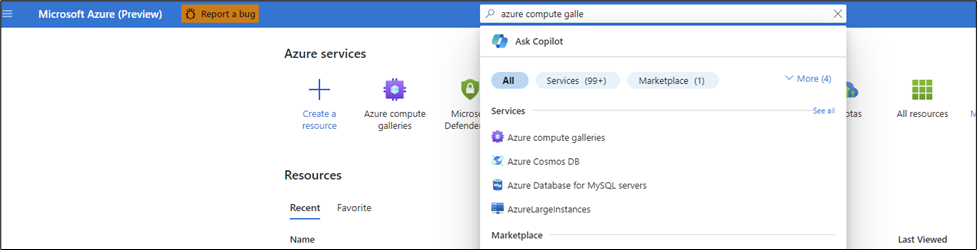
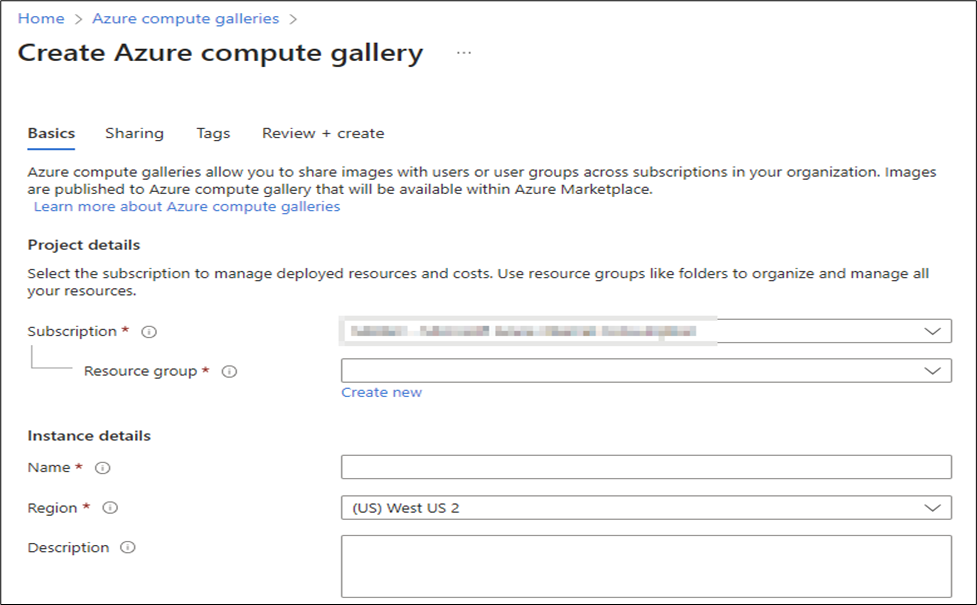
- Create a new gallery and give it a name, select a region and type a description (optional)
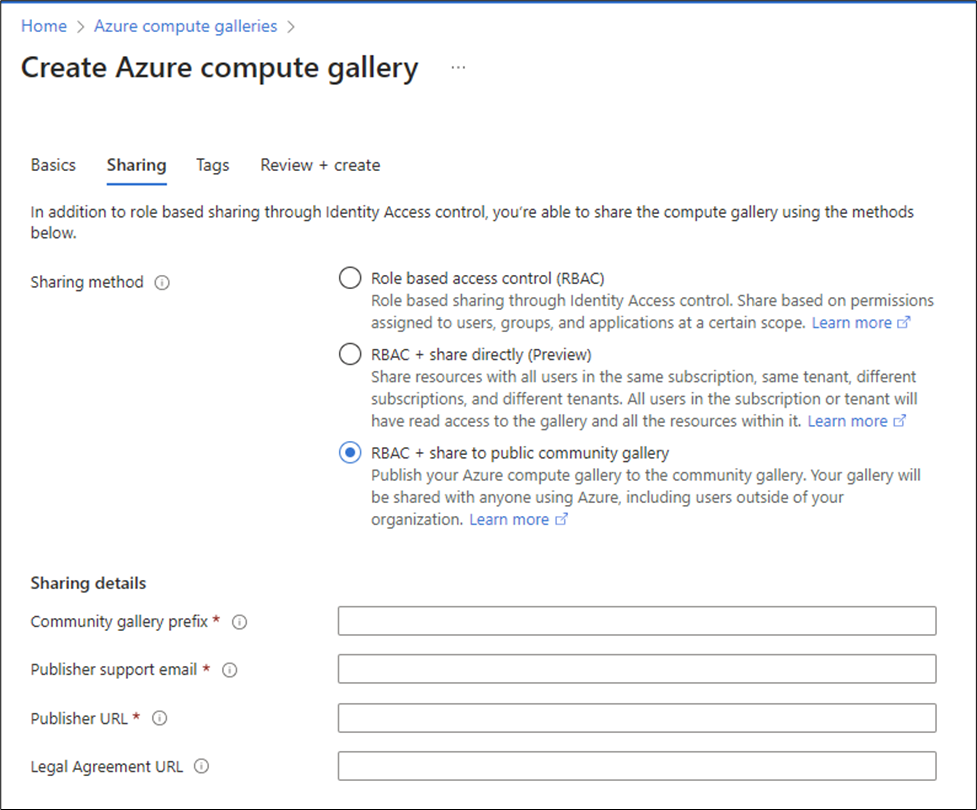
- In the sharing tab, select RBAC + share to public community gallery and provide additional information as follows:
- community gallery prefix (gallery name that customers use to look up images)
- support email (if any) in case customers want to reach out for any questions
- Publisher url (if any)
- Legal agreement URl (if applicable)
- Once the gallery is created, the rest of the steps to create an image definition and image version are similar to creating any Compute Gallery image as described here: https://learn.microsoft.com/azure/virtual-machines/image-version?tabs=portal%2Ccli2
How to consume a community image?
- Search for “community images” in the Azure portal.
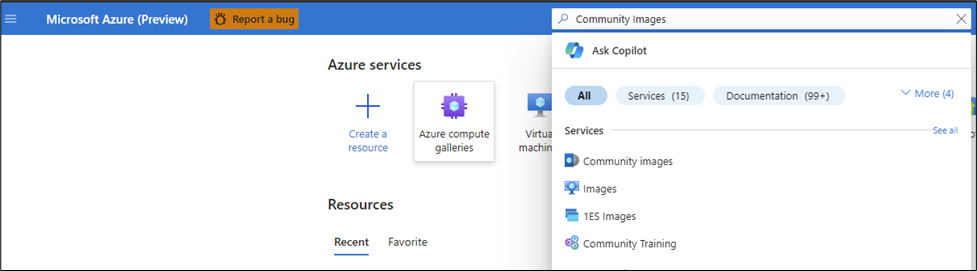
- From the Community images blade, search for the desired image using the public gallery name. For example: centosstream-7a8cb0cb-b653-4956-a3c9-e1eebd60f204

- Select the desired image and create a VM or a VM scale set.
To learn more, please refer to the community gallery public documentation here