Edge is faster on Windows with Accelerated App Launches

This post has been republished via RSS; it originally appeared at: Microsoft Edge Blog.

We're excited to announce that Edge is the first browser to support accelerated app launches on Windows, delivering a faster and more consistent browser launch experience. With accelerated app launch, most Windows users will see a 15% launch speed improvement, with wins of up to 33% under heavy multitasking!1 That means you can start browsing faster. This has already rolled out starting with Microsoft Edge version 150 and later and is supported on Windows 11, versions 25H2, 26H2, 26H1 with the October 2026 non-security update (KB5127936) or later.

How does this work?

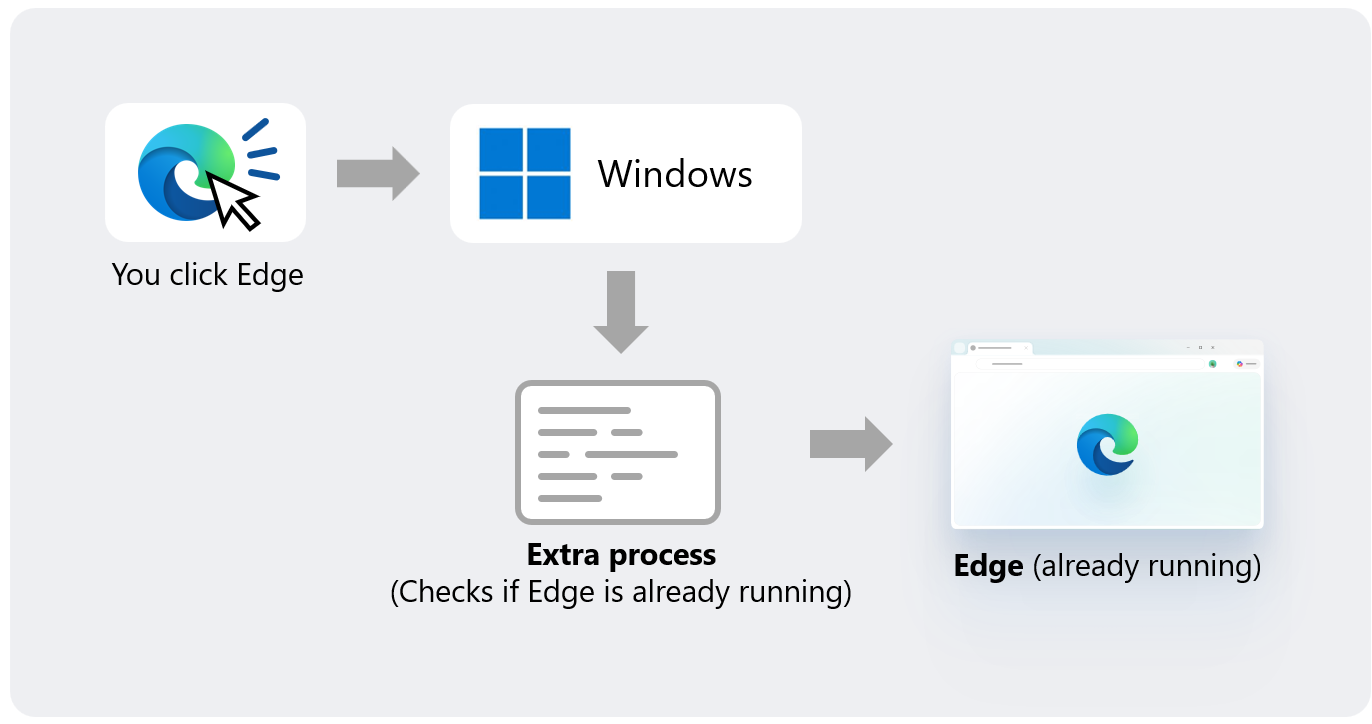
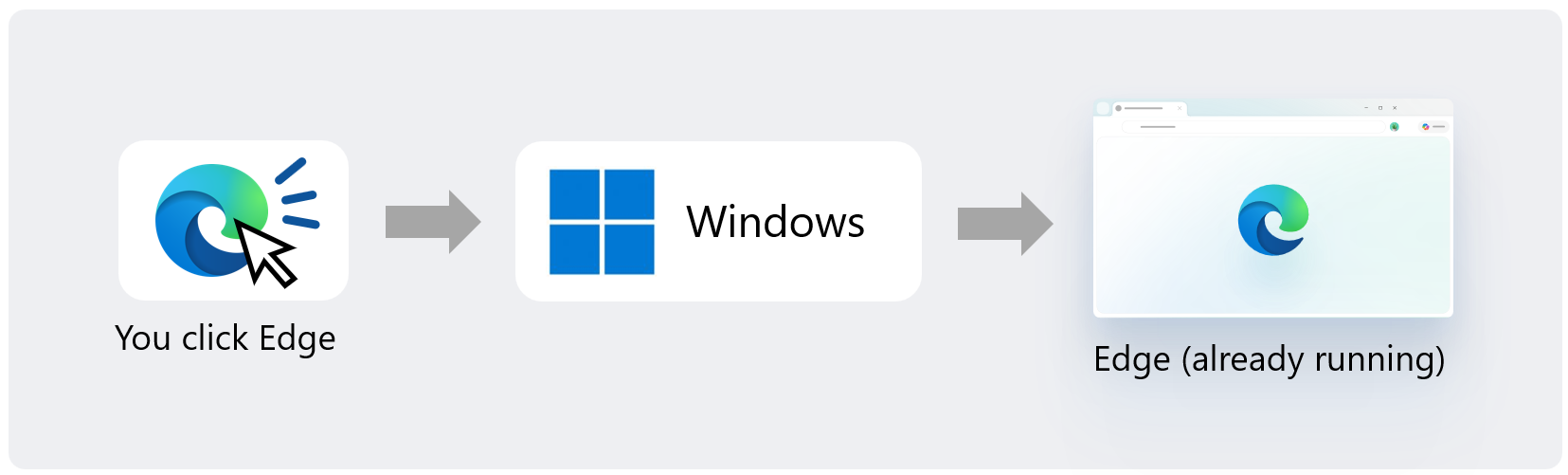
The Edge and Windows team partnered to bring this new Windows accelerated app launch capability to Edge users quickly. Edge, like many modern applications on Windows, is often already running. A visible Edge window might already be open, or Edge might already be running in the background through features such as Startup Boost. Without accelerated app launches on Windows, when you click on a link or start Edge from the taskbar, Windows must first determine if Edge is already running. To do that, Windows starts an intermediary process that looks for the already-running browser and, if one is found, forwards the request. Diagram showing Windows starting an extra process to check whether Edge is already running On a PC that just started, you might barely notice. But in real multi-tasking scenarios, the extra work of having to look for an existing Edge process could make Edge feel slow. Now, with accelerated app launches on Windows, when an Edge process starts, it sends a registration request to Windows. Windows checks and accepts the request. Later, when Edge is launched again, Windows can use the accelerated-launch registration to notify the already running Edge process directly. Diagram showing Windows notifying the already-running Edge process directly Accelerated app launches are supported by the Start menu and the Taskbar and opening supported links that open in Edge by default. For developers who are interested in supporting accelerated launches in their own Windows apps, see Register your application for accelerated app launches.
Making Edge work great on Windows

Accelerated app launches is part of our work to make Edge work great on Windows and we'll continue innovating in this area. We're working with Windows on adding other ways to utilize this feature, such as when opening PDF files. We're also contributing this work to Chromium, the open-source project which Edge is based on, so other Chromium-based browsers can benefit from accelerated launches on Windows in the future. 1 Compared to launching Microsoft Edge without accelerated app launch in Windows, when Edge is already running. Requires Windows 11 (25H2, 26H1 or 26H2) with KB5127936 or later and Edge 150+.

Leave a Reply

Your email address will not be published. Required fields are marked *

*

This site uses Akismet to reduce spam. Learn how your comment data is processed.

Edge is faster on Windows with Accelerated App Launches

This post has been republished via RSS; it originally appeared at: Microsoft Edge Blog.

We're excited to announce that Edge is the first browser to support accelerated app launches on Windows, delivering a faster and more consistent browser launch experience. With accelerated app launch, most Windows users will see a 15% launch speed improvement, with wins of up to 33% under heavy multitasking!1 That means you can start browsing faster. This has already rolled out starting with Microsoft Edge version 150 and later and is supported on Windows 11, versions 25H2, 26H2, 26H1 with the October 2026 non-security update (KB5127936) or later.

How does this work?

The Edge and Windows team partnered to bring this new Windows accelerated app launch capability to Edge users quickly. Edge, like many modern applications on Windows, is often already running. A visible Edge window might already be open, or Edge might already be running in the background through features such as Startup Boost. Without accelerated app launches on Windows, when you click on a link or start Edge from the taskbar, Windows must first determine if Edge is already running. To do that, Windows starts an intermediary process that looks for the already-running browser and, if one is found, forwards the request. Diagram showing Windows starting an extra process to check whether Edge is already running On a PC that just started, you might barely notice. But in real multi-tasking scenarios, the extra work of having to look for an existing Edge process could make Edge feel slow. Now, with accelerated app launches on Windows, when an Edge process starts, it sends a registration request to Windows. Windows checks and accepts the request. Later, when Edge is launched again, Windows can use the accelerated-launch registration to notify the already running Edge process directly. Diagram showing Windows notifying the already-running Edge process directly Accelerated app launches are supported by the Start menu and the Taskbar and opening supported links that open in Edge by default. For developers who are interested in supporting accelerated launches in their own Windows apps, see Register your application for accelerated app launches.

Making Edge work great on Windows

Accelerated app launches is part of our work to make Edge work great on Windows and we'll continue innovating in this area. We're working with Windows on adding other ways to utilize this feature, such as when opening PDF files. We're also contributing this work to Chromium, the open-source project which Edge is based on, so other Chromium-based browsers can benefit from accelerated launches on Windows in the future. 1 Compared to launching Microsoft Edge without accelerated app launch in Windows, when Edge is already running. Requires Windows 11 (25H2, 26H1 or 26H2) with KB5127936 or later and Edge 150+.

Leave a Reply

Your email address will not be published. Required fields are marked *

*

This site uses Akismet to reduce spam. Learn how your comment data is processed.